

Inseego MIFI Instructions

This is the Inseego MIFI Device and is what allows you to connect to the internet via a HotSpot. You can use this anywhere there is good cell reception. At home, at work, on the go, you can now reliably access the internet anywhere you want to be. To begin, this is what you should have when you are checking one out to use.

Make sure you have all the following inside the case as pictured above:
-
Inseego MIFI Device
-
AC Adapter
-
USB Charge Cord
-
Case with Strap
-
Quick Start Guide Card
If anything is missing, please return to the Circulation Desk and let one of our staff know.

Step 1
Power On
To turn the power on the device, press and hold down the button located on the top of the device for 5 seconds. The screen should activate and you should see the Verizon Logo appear. Give it a few moments to boot up and you will see the main Home Screen menu.
Step 2
Main Menu
The main menu shows alot of information, the signal strength, the battery health, and more. This is a TOUCH SCREEN. You can get to the WIFI Name and Password by touching the spot on the screen that says "Wi-Fi Name/Password"


Step 3
WIFI Name and Password
This is the screen that will tell you the name of the WIFI connection and the Password required to connect to it. be mindful while entering the letters and numbers in the password on the device you want to connect, because they must match in order for connection to be established.
Step 4
Finding the Device
Open the device settings on the device you wish to connect to the internet and search through all the available connections that match the name of the MIFI device and select it to connect to. You will be asked for the password, and that is when you enter the password that is shown on the MIFI device.


Step 5
Connection
Once you've entered the password correctly, your device should tell you that you are Connected and now you can use the internet as normal. Congradulations!
Problem Solving
If you find that you are having trouble connecting, check one of the following reasons:
-
Is the MIFI fully charged? No... Plug it into the AC Adapter with the USB Cord. You can use the device while it's plugged in and charging.
-
You have good Cell Reception? No... If where you are using the device doesn't have good cell reception, you may not be able to use the MIFI device. If you have a single area in your house that you get reception, place the MIFI device there. A window sill or outer wall will get better reception.

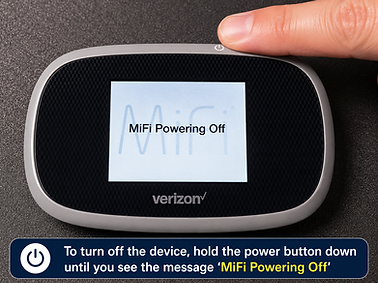
Power Off
To turn off the device, hold the power button down on the top of the device for 5 seconds until you see the display say "MiFi Powering off"
Before returning, make sure you fully charge the device if possible. Never put the returned device into the drop box, always make sure you return it to the Circulation desk. Use the image below to guide you how to place each item back into the case. Never place the AC Adapter in the top pocket and place the screen face down into the case to avoid damaging the device.
